 Written by
 When your computer suddenly stops recognizing your hard disk, it can be both frustrating and alarming. The hard disk is the heart of your computer’s data storage, holding your operating system, files, programs, and personal data. If it’s not being detected, it could mean anything from a minor software glitch to a serious hardware failure. Understanding the possible causes and solutions can save you time, prevent data loss, and help you decide whether you can fix the issue yourself or need professional help. This guide explores the most common reasons why a hard disk might not be detected and offers practical steps to troubleshoot the problem effectively. By the end, you’ll have a clear action plan to diagnose the cause and restore your computer’s functionality while protecting your valuable data from permanent loss.
Common Reasons Your Computer Is Not Detecting the Hard Disk
When a computer fails to recognize a hard disk, it could stem from hardware, software, or connection issues. The key to solving the problem is identifying which category it falls into.
Loose or Damaged Connections
One of the simplest but most overlooked causes is a loose or damaged connection between the hard disk and the motherboard. Internal hard drives use SATA cables (or older IDE cables) that can loosen over time or suffer physical damage. If you recently moved your computer or bumped it, a loose cable could be the culprit.
Hard Disk Failure
Hard disks, especially traditional HDDs, have moving mechanical parts that can fail over time due to wear and tear. Clicking sounds, grinding noises, or frequent freezes may indicate the drive’s read/write heads or motor are malfunctioning. SSDs, while more durable, can also fail due to flash memory degradation.
BIOS/UEFI Settings Issues
Sometimes, your hard disk is functional but not enabled in your BIOS or UEFI settings. A firmware update, battery reset, or accidental setting change could disable the detection of the drive.
File System Corruption
If the file system becomes corrupted due to improper shutdowns, malware, or sudden power loss, your computer might fail to mount the hard disk even though it’s physically connected and powered on.
Driver Problems
Outdated or missing storage controller drivers can prevent the operating system from communicating with your hard disk. This is more common after a system update or reinstall.
How to Troubleshoot a Hard Disk Not Being Detected
Troubleshooting should follow a logical order, starting with the easiest solutions before moving to more technical ones.
Step 1: Check Physical Connections
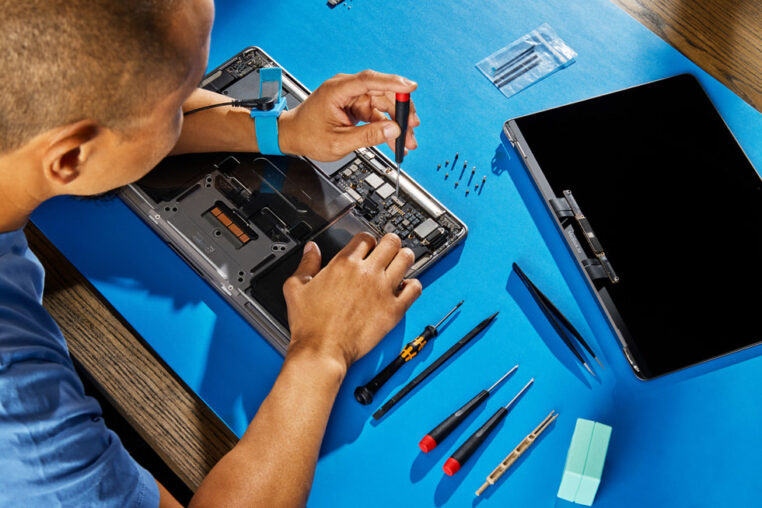
If you have a desktop, open the case and ensure the SATA and power cables are securely attached to both the hard disk and motherboard. For laptops, this usually requires removing a panel or the bottom cover. If possible, try using a different cable or connecting the drive to another SATA port.
Step 2: Test on Another Computer or External Dock
To rule out motherboard issues, connect your hard disk to another computer using a compatible cable or an external USB-to-SATA dock. If the drive is recognized on the other machine, the problem lies with your original computer’s hardware or settings.
Step 3: Check BIOS/UEFI Settings
Restart your computer and enter the BIOS/UEFI setup (usually by pressing keys like F2, DEL, or ESC during boot). Look for a section that lists connected storage devices. If your hard disk isn’t listed, try enabling it or changing the SATA mode (AHCI, IDE, or RAID) to see if it’s detected.
Step 4: Update or Reinstall Drivers
For Windows users, open Device Manager and look under “Disk Drives” and “Storage Controllers.” If there’s a yellow warning symbol, right-click and update or reinstall the driver. For Mac users, disk detection issues are less often driver-related but can still benefit from software updates.
Step 5: Use Disk Management or Disk Utility
On Windows, open Disk Management to see if the drive appears without a letter or with unallocated space. You might need to assign a letter or initialize the disk. On macOS, use Disk Utility to verify and repair the disk.
Signs Your Hard Disk May Be Failing
Recognizing the signs of a failing drive can help you act before losing data permanently.
- Frequent system crashes or freezes
- Slow file access or transfer speeds
- Clicking, buzzing, or grinding noises
- Corrupted files that won’t open
- Drive not showing up intermittently
If you notice these symptoms, back up your data immediately and consider replacing the drive.
Preventing Future Hard Disk Detection Problems
While no storage device lasts forever, you can extend the lifespan of your hard disk and reduce detection issues by following a few best practices.
Regular Backups
Use an external drive or cloud storage service to regularly back up important files. This ensures you won’t lose data if the drive suddenly fails.
Keep Software Updated
Install the latest firmware updates for your hard disk and keep your operating system drivers current. Updates often include stability improvements and bug fixes.
Avoid Physical Shocks
Handle laptops gently, and avoid moving desktops while they’re running. Sudden impacts can damage a hard disk’s internal components.
Monitor Drive Health
Use monitoring tools like CrystalDiskInfo (Windows) or DriveDx (Mac) to keep track of your hard disk’s health status. Early detection of bad sectors or overheating can prevent sudden failures.
When to Seek Professional Help
If your troubleshooting efforts don’t solve the problem, or if your drive contains important data you cannot afford to lose, it’s time to seek expert assistance. Professional technicians have the tools and experience to diagnose and repair complex hardware and software issues, including data recovery. This is especially important if the drive is making unusual noises, as further use could cause irreversible damage.
For residents looking for Computer Repair in Pomona, CA, professional help can save you both time and money by avoiding risky DIY attempts that might worsen the issue.
Final Thoughts
A computer not reading your hard disk can stem from minor issues like loose cables to major failures requiring immediate attention. By methodically checking connections, settings, and software, you can often identify the problem without guesswork. However, when in doubt, consulting an expert is the safest route—especially if valuable data is on the line. Protecting your files through regular backups and maintaining your system’s health will reduce the chances of facing this frustrating problem in the future.
Explore premier computer repair services at Techy Pomona, your local expert for all things tech. We specialize in high-quality repairs for PCs, laptops, MacBooks, and iMacs, catering to the specific needs of each device with precision and professionalism. Our Pomona location is outfitted with the latest tools and technology, staffed by knowledgeable technicians who are ready to restore your device to its peak condition.

 Written by
  Written by